Making a booking
How to book an aircraft, instructor or room, and what happens the moment you try to confirm it.
Last reviewed
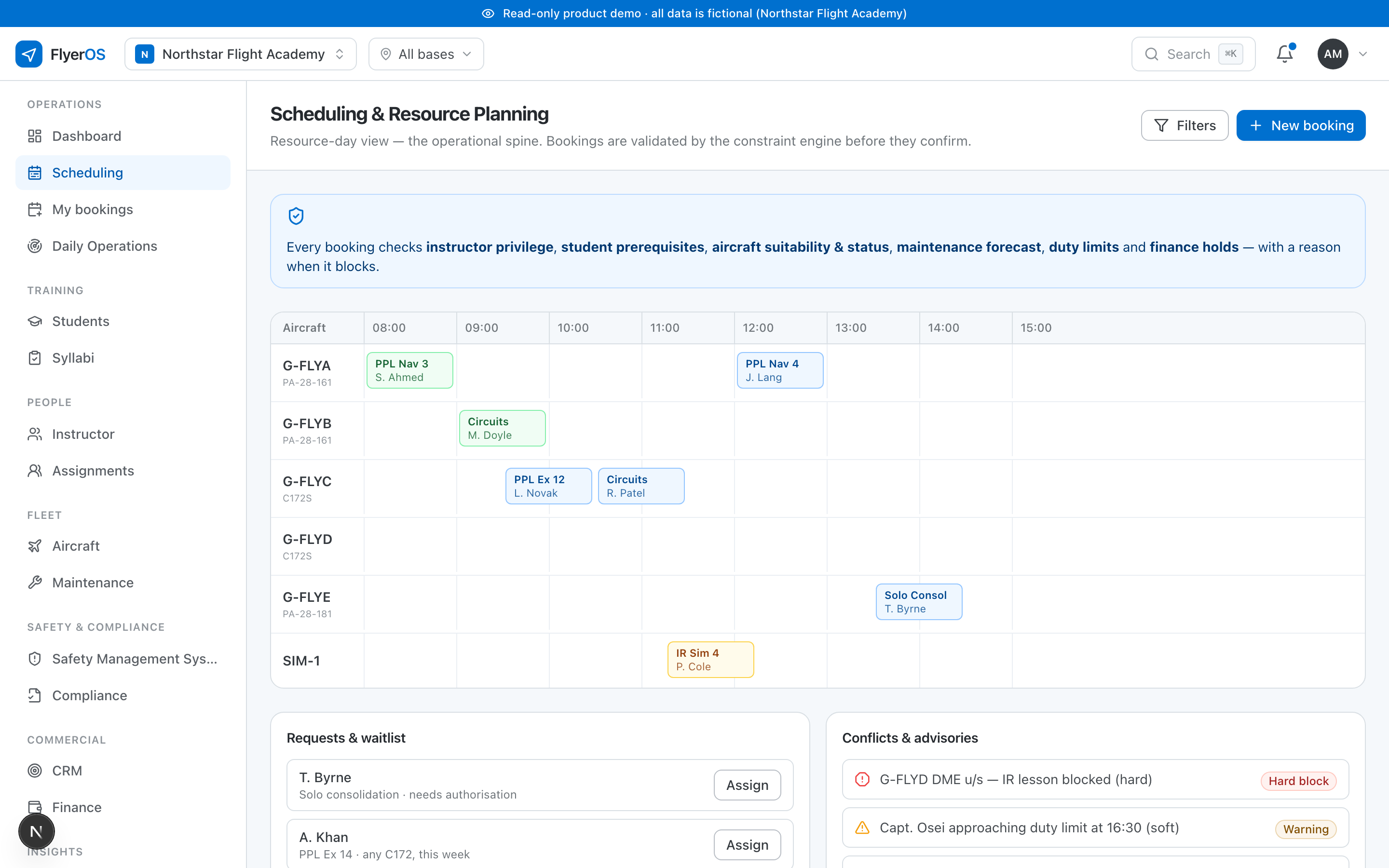
A booking in FlyerOS is not just a block of time on a calendar. It is a proposal that the system checks before it lets it stand, so the schedule you are looking at is one you can trust.
How to make one
The board shows your resources, aircraft, instructors, rooms and simulators, as lanes across the day. To book:
- Pick the slot on the resource you want, or start from a student or an instructor.
- Choose what the flight is: the aircraft, the instructor, the student, and the exercise or activity.
- Confirm.
You can book from the aircraft's point of view, the instructor's, or the student's, whichever is how you actually think about the slot.
What happens when you confirm
The moment you try to confirm, FlyerOS runs the full set of eligibility checks against the time the flight is scheduled for. It looks at instructor privilege, document validity, aircraft status, the maintenance forecast, duty limits and finance holds, all together. See What the schedule checks.
- If everything passes, the booking stands.
- If something does not, the booking is refused with a plain-English reason, and you can act on it rather than guess. See Why was a booking blocked?.
Provisional holds
You can hold a slot provisionally before it is fully confirmed, which is useful when you are still arranging the other half of the flight. A provisional hold reserves the resource without pretending the flight is confirmed, and it is clearly marked as such on the board so nobody mistakes it for a committed booking.
It is checked again later
Passing the checks now does not mean the flight is waved through at the aircraft. The same checks run again at the dispatch gate against the state right then, so anything that changes between now and the flight is still caught. See The pre-dispatch gate.